


Mobile Scanner App - Scan PDF
4.71.98K Reviews
App Specs
- Version
- 2.15.0
- Updated On
- License
- Free
- Downloads
- 10,000,000+
- Developer
- Glority Global Group Ltd.
- Categories
- Productivity
- Platform
- Android, iOS
Screenshots
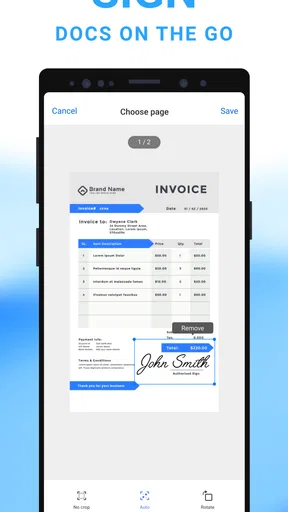
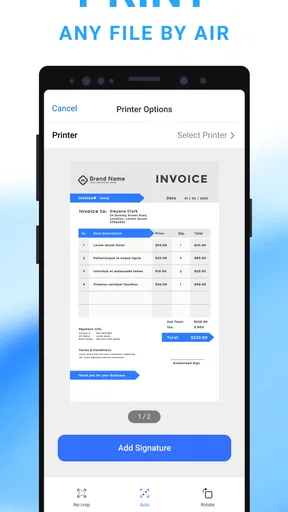
 Analysis by AppCompare
When a household needs to send a form, save a receipt, or share a school notice, a phone can be the quickest scanner available. I find Mobile Scanner App - Scan PDF most useful for those occasional jobs where a flatbed scanner would be excessive but a clear digital copy still matters. It is a free productivity app from Glority Global Group Ltd., with optional in-app purchases, and its straightforward scanning focus makes it approachable for everyday use.
Using a scanner app around the house
A shared-device situation is easy to imagine: one person photographs a permission slip, another needs a copy of a bill, and someone else wants to keep a warranty receipt. A dedicated scanning app can turn those loose papers into files that are easier to send and retrieve than camera photos. The key is to treat each scan as a small task: capture the page, check the crop, give the file a recognizable name, then export it to the place the right person can access.
That workflow is where this app makes sense. Its camera-based capture is more purposeful than taking a regular photo, and edge detection can reduce the time spent manually framing a sheet. It is handy when paperwork arrives at an inconvenient moment, such as a form that needs to be emailed before leaving home. I would still check every page before sending it; automatic framing saves effort, but it is not a substitute for checking that all text and corners are visible.
Set up sensible boundaries on a shared phone
On a family or household device, the practical question is not only how to scan, but where the resulting file goes. I would decide on a simple convention before several people start using the same app: use clear names that identify the subject and date, and avoid putting private details in a filename if the file may appear in a shared list. A folder for household paperwork can help separate it from personal scans, while a separate export destination is better when a document belongs to only one person.
It is also worth making a deliberate choice before sharing. A scan of a school form, medical document, or account statement may contain more information than the recipient needs. I would inspect the whole page and the exported file, then send it directly to the intended person rather than relying on a broadly shared folder. For a sensitive paper, password protection can be useful, but it does not remove the need to choose a secure destination and share the password separately.
Coordination matters more than a clever folder system
In a home with more than one regular user, a lightweight routine can prevent duplicate scans and misplaced copies. For example, agree that the person who handles a particular form scans and names it, while another person checks that the exported file reached the right destination. This is more reliable than assuming everyone will remember which folder or keyword another person used. If several people need their own copies, confirm that each can open the file rather than treating a successful send action as proof that the handoff is complete.
The app’s organizing tools—folders, tags, and keyword search—can help once a personal collection grows. They are less helpful if household members use inconsistent labels. I would choose a few plain terms, such as “school,” “receipts,” or “home,” and keep them consistent. That small bit of coordination makes search more useful without turning document filing into another chore.
Worth Reading Before You Choose

EA SPORTS FC Mobile 26 Is a Bigger Football Game, but It Takes Time

Flipboard Shows What News Apps Must Do Beyond the Feed

Switching to Android Auto Means Rethinking Your Driving Routine

Google Calendar Makes a Crowded Week Easier to Manage

Ludo King Makes the Most of the Minutes Between Plans

Baby Panda World Brings Quick Play to Modern Phones, but Its Game Library Feels Busy
Age, trust, and document handling
The app is rated for Everyone, so its audience is broad, but age suitability is not the same as a reason to let a child handle every document independently. Younger users may be able to scan a worksheet or a club notice with guidance; paperwork containing addresses, signatures, or financial details calls for an adult to check the image and decide where it should go. The most useful household rule is simple: scan only what needs to be kept or sent, and ask before sharing anything that identifies another person.
I would also keep expectations realistic about privacy. The original review describes local storage unless a user chooses to upload files elsewhere, and password protection is a helpful option for documents that should not be casually opened. In shared-device use, though, a protected document is only one part of the boundary: people should also know which account or destination is being used and who can reach it. If a document must meet strict workplace or legal handling requirements, I would use the process approved for that purpose rather than assume a general scanning app is enough.
Where it fits among scanning alternatives
Compared with the phone’s built-in camera, a scanner app is more convenient when you want a cropped page, a PDF, or a repeatable way to file paperwork. A photo can be perfectly adequate for a quick visual reference, but it may include background clutter and can be awkward to assemble into a tidy document. Compared with a physical scanner, a phone is easier to use away from a desk and avoids setting up hardware, though careful positioning and good light still affect the result.
For a one-off page, the simplest camera or a scanning tool already built into a workflow may be enough. I would choose this app when I expect to scan repeatedly and want its capture, editing, organization, and export options in one place. I would skip it if my main need is heavy document processing, strict managed access for a team, or a dedicated office workflow; in those cases, an approved business service or a physical scanner may be a better fit.
Small habits that improve the result
For a more readable scan, I place the paper on a contrasting, uncluttered surface and keep the phone parallel to it. That helps the camera see the page boundary and reduces distracting shadows. Before exporting, I check the edges and the smallest text, especially on receipts or forms with print near the margins. If the page is hard to read, adjusting brightness or contrast—or trying grayscale—can be more useful than repeatedly taking the same picture under unchanged conditions.
For multi-page paperwork, I would review the pages in order before sending the PDF. A page turned sideways or captured twice is easy to miss when scanning quickly, and the recipient may not know which version is final. I also find it helpful to use a filename that makes sense outside the app, since an exported document may be opened later in email or a cloud drive without the folder context. These checks take only a moment but can prevent an avoidable follow-up.
Getting started and what to expect
Downloading and installing the Mobile Scanner App - Scan PDF was a breeze, and before I knew it, I was ready to transform my phone into a portable scanner. The app is available on both Android and iOS, ensuring that almost everyone can have access to this nifty tool.
Upon launching the app, I was greeted with a clean and intuitive interface. No unnecessary frills here – just straightforward functionality. It doesn’t bombard you with ads or complicated menus, which is a huge plus in my book. You can tell that the developers focused on delivering a seamless user experience.
Its established reach also gives new users a useful point of reference: the app has more than ten million installs and an average rating of 4.6 from around 101,000 ratings. It is free to download, with in-app purchases ranging from $0.99 to $39.99 per item. I would start with the free experience and only consider a purchase if a particular option solves a real need; the presence of paid items alone is not a reason to assume they are necessary for basic scanning.
Scanning and checking each page
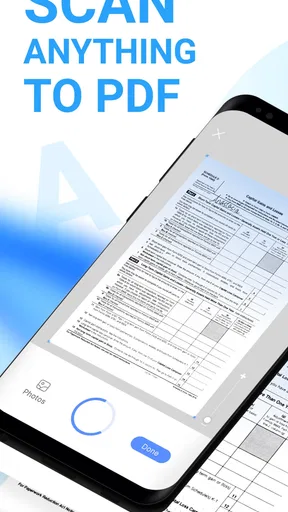
So, how does the app perform when it comes to actual scanning? Pretty darn well, if you ask me. The app uses your phone's camera to capture documents, and the quality of the scans is impressive. Even in less-than-ideal lighting conditions, the app managed to produce clear and legible documents. This is perfect for those times when you need to scan something on the fly and don’t have access to a traditional scanner.
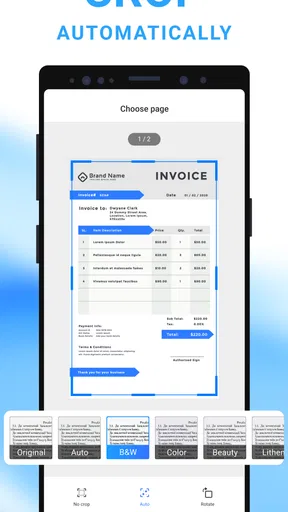
One of my favorite features is the automatic edge detection. It’s like having a mini genius in your pocket that knows exactly where to crop the document. This ensures that you’re left with a perfectly framed scan every time. The app also offers a range of editing options, allowing you to tweak brightness, contrast, and even convert your scan to grayscale if needed.
In practice, I treat automatic cropping as a first draft rather than a guarantee. A white page on a pale table, a folded corner, or a shadow can make an edge harder to identify. I check that no handwriting or printed text has been clipped, especially when a form needs a signature or a receipt includes a total near the bottom. For paperwork that must be exact, a quick retake is better than trusting a crop that looks neat but loses useful content.
Keeping files findable and sharing carefully
Once you’ve scanned your documents, the app makes it a breeze to organize your files. You can create folders, add tags, and even search for specific documents using keywords. This is a lifesaver when you’ve got a ton of documents and need to find something quickly.
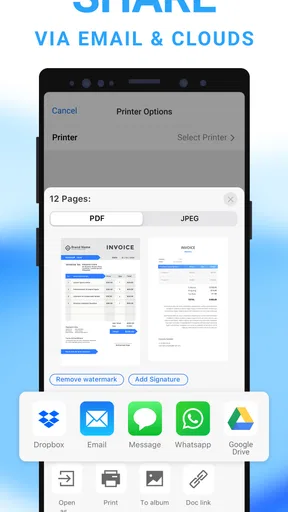
Sharing your scans is just as simple. The app allows you to export files as PDFs or JPEGs, and you can send them via email, messaging apps, or upload them directly to cloud services like Google Drive, Dropbox, and more. This flexibility means you can easily collaborate with colleagues or send important paperwork in a snap.
The choice between PDF and JPEG is worth making intentionally. I prefer PDF for a multipage form or anything the recipient should read as a document; JPEG can be convenient when someone only needs a single image. Before sending, I open or preview the exported copy and confirm that it is the correct version. When using a cloud destination, I check that I am signed into the right account, particularly on a device shared by household members.
Privacy without false confidence
In today's digital age, security is always a concern. Fortunately, the Mobile Scanner App takes this seriously. The app offers password protection for your documents, ensuring that sensitive information stays private. Additionally, all your data is stored locally on your device unless you decide to upload it elsewhere, giving you complete control over your information.
For everyday household use, that local-first approach can make it easier to keep a scan on the phone until you decide what to do with it. Still, sharing changes the picture: once you export a document to email, messaging, or a cloud service, the destination’s access and account settings matter too. I would avoid leaving unnecessary copies in shared locations and remove a scan from places where it no longer needs to be available. That is a practical habit, not a promise that a password feature can solve every privacy concern.
My household verdict
So, what’s the final verdict on the Mobile Scanner App - Scan PDF? In my humble opinion, it’s a must-have tool for anyone who needs a reliable and efficient way to scan documents on the go. Whether you’re a student, a professional, or just someone who likes to stay organized, this app has something to offer.
The combination of ease of use, high-quality scans, and robust sharing options makes it a standout choice in the crowded field of scanning apps. Plus, the added layer of security ensures that your documents are safe and sound. So go ahead, give it a try, and say goodbye to those bulky old scanners once and for all!
I would soften that last thought for a household: a phone scanner is a handy companion, not a universal replacement for a physical machine. It is best for forms, receipts, notes, and occasional paperwork that needs to travel quickly. A flatbed or office scanner remains preferable when you need to process a large batch, handle unusual paper, or follow a controlled document procedure. The app is currently version 2.13.1 and requires Android 9 or later; its Everyone age rating makes it broadly accessible, while sensible adult oversight still matters for private family paperwork.
Overall, I would recommend it to a household that wants a convenient way to capture and pass along everyday documents, provided users agree on where files belong and take a moment to check each export. It is less compelling for someone who scans only once in a while and is content with a basic camera, or for a group that needs centrally managed permissions. Used with clear naming, careful sharing, and realistic expectations about cropping, it can make small paperwork jobs noticeably easier without turning document management into a project.
Pros
- Easy-to-use interface with intuitive design.
- High-quality scans with excellent clarity.
- Supports multiple file formats for export.
- Quick scanning with batch processing option.
- Secure cloud storage for scanned documents.
Cons
- Limited editing features for scanned documents.
- Free version has frequent ads interrupting scans.
- Some features locked behind a paywall.
- Occasional crashes on older devices.
- Requires a stable internet connection for cloud sync.
FAQs for Mobile Scanner App - Scan PDF
What features does the Mobile Scanner App offer?
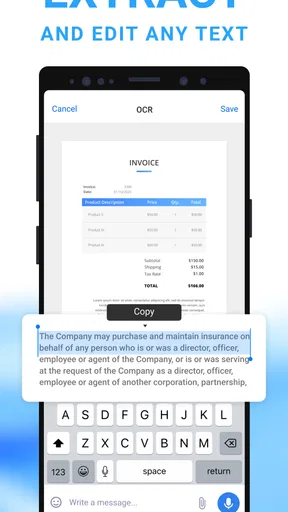
The Mobile Scanner App provides a range of features including high-quality document scanning, OCR (Optical Character Recognition) for text extraction, and the ability to convert documents into various formats like PDF and JPEG. It also offers cloud integration, allowing you to store and access documents from services such as Google Drive, Dropbox, and iCloud.
Is the Mobile Scanner App free to use?
The Mobile Scanner App offers a free version with basic scanning capabilities. However, to access advanced features such as batch scanning, OCR, and cloud storage integration, a subscription or one-time purchase may be required. Pricing details are available within the app or on the official download page.
How user-friendly is the Mobile Scanner App?
The Mobile Scanner App is designed with a user-friendly interface that is easy to navigate. It includes tutorials and guides for new users, and its intuitive design ensures that scanning and converting documents is straightforward. Users can quickly learn how to operate the app effectively within a few minutes.
What types of documents can the Mobile Scanner App handle?
The Mobile Scanner App can scan a wide variety of documents including contracts, receipts, business cards, and handwritten notes. It supports multiple file formats for export, ensuring compatibility with different needs. The app’s OCR feature is particularly useful for extracting text from printed documents for editing or sharing.
Is the Mobile Scanner App secure for sensitive documents?
Security is a priority for the Mobile Scanner App. It incorporates encryption for both stored and shared documents, ensuring that sensitive information remains protected. Additionally, users can set up passcodes or biometric authentication to access the app, adding an extra layer of security to their scanned documents.


